
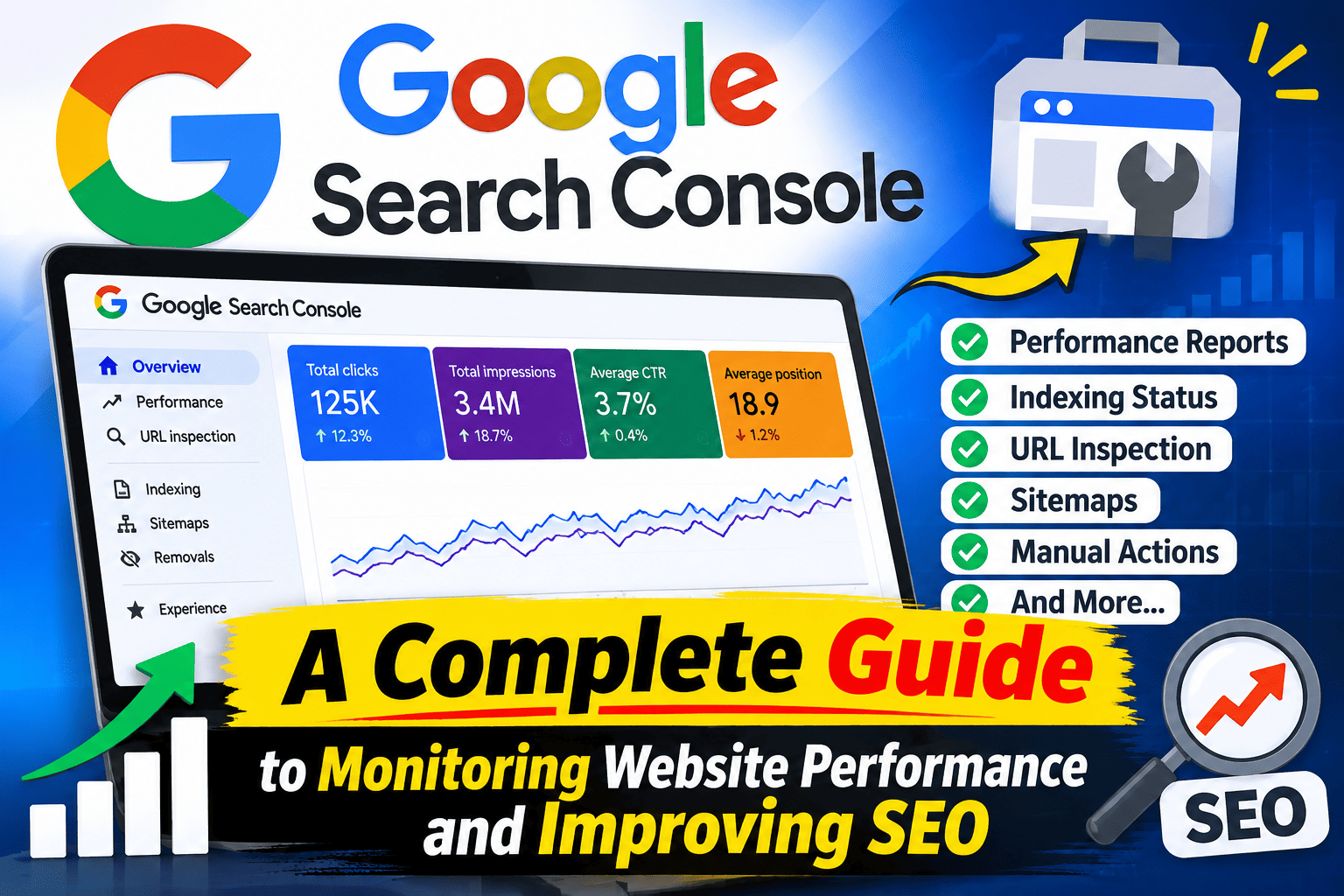
Getting a website to appear on Google is only the first step towards building a strong online presence. The real challenge is understanding how people discover your website, which pages attract visitors, and what prevents other pages from performing well in search results.
Many website owners invest time in publishing blog posts, improving website content, and building backlinks. However, without regularly checking search performance, it becomes difficult to understand whether these efforts are delivering the expected results.
This is where Google Search Console (GSC) becomes an important part of an effective SEO strategy.
Google Search Console is a free tool that helps website owners, SEO professionals, and digital marketers monitor how their websites perform in Google Search. It provides valuable information about search queries, clicks, impressions, indexing status, website experience, and technical issues.
Whether you manage a business website, an eCommerce store, or a blog, understanding Google Search Console features can help you make better SEO decisions and identify opportunities for improvement.
In this guide, we will explore the most useful Google Search Console features, how to understand their reports, and how to use the available data to improve your website’s organic search performance.
What Is Google Search Console?
Google Search Console is a free website monitoring and performance tool provided by Google. It allows website owners to understand how Google discovers, crawls, indexes, and displays their web pages in search results.
Unlike website analytics tools that mainly focus on visitor behaviour, Google Search Console provides information about your website’s performance in Google Search before someone even visits your website.
For example, it can help you understand:
- Which keywords are bringing visitors to your website.
- How many times your website appears in Google search results.
- Which pages receive the most organic clicks.
- Whether important website pages are indexed.
- Which technical issues may affect search visibility.
- How your website performs on mobile devices.
- Which websites link to your content.
These insights help SEO professionals identify problems, understand user search behaviour, and plan improvements based on actual search performance.
Why Is Google Search Console Important for SEO?
SEO is not just about adding keywords to website pages or publishing regular blog posts. It also involves understanding how your website performs and identifying areas that need attention.
Google Search Console makes this process easier by providing information directly from Google’s search environment.
Here are some important reasons why every website owner should use it.
1. Understand Your Website’s Search Performance
You can see how frequently your website appears in Google Search and how many users click on its listings.
This information helps you understand whether your website is gaining visibility for relevant search queries.
2. Discover Keyword Opportunities
The Performance report shows the actual search queries for which your website receives impressions and clicks.
You may discover relevant search terms that you have not specifically targeted in your existing content.
3. Identify Indexing Problems
Sometimes, a website page is published successfully but does not appear in Google Search.
Search Console helps you investigate whether Google has discovered and indexed that page or whether an issue is preventing indexing.
4. Monitor Technical SEO Issues
Website errors, crawling problems, and poor page experience can affect how visitors interact with your website.
Search Console provides reports that help you identify and investigate these issues.
5. Make Better SEO Decisions
Instead of making changes based on assumptions, you can use actual search performance data to decide which pages need content improvements, which keywords deserve attention, and where technical fixes are required.
Top Google Search Console Features Every SEO Professional Should Know
Google Search Console offers several reports and tools. Some are useful for keyword research and performance tracking, while others help identify technical problems.
Let’s understand the most important features and how they can support your SEO strategy.
1. Performance Report: Track Clicks, Impressions, CTR, and Average Position
The Performance report is one of the most valuable features in Google Search Console.
It helps you understand how your website performs in Google Search by providing information about clicks, impressions, click-through rate, and average position.
Here is what each metric means:
Total Clicks: The number of times users clicked your website’s listing in Google Search results.
Total Impressions: The number of times a link to your website appeared in Google Search results.
Average CTR: The percentage of impressions that resulted in clicks.
Average Position: The average position of your website’s highest-ranking result for the selected search queries.
How Can You Use the Performance Report to Improve SEO?
For example, imagine one of your blog posts receives 5,000 impressions but only 100 clicks.
This indicates that the page is appearing in search results, but its listing may not be attracting enough visitors.
You can investigate the following areas:
- Is the SEO title relevant to the search query?
- Does the meta description clearly explain the page’s value?
- Does the content match what users are searching for?
- Are competitors offering more relevant information?
Similarly, if a page receives clicks for keywords that are not properly covered in its content, you can consider improving the page to address those related searches.
Practical SEO Tip: Regularly compare clicks, impressions, CTR, and average position. Do not judge a page using only one metric. Look for meaningful changes over time.
2. URL Inspection Tool: Check Individual Page Indexing
The URL Inspection tool helps website owners understand how Google sees a particular page.
It is especially useful when you publish a new blog post, update an existing service page, or investigate why a particular URL is not appearing in Google Search.
Using this feature, you can check:
- Whether a URL is indexed in Google.
- When Google last crawled the page, where available.
- Whether indexing is allowed.
- The page’s declared and Google-selected canonical URLs, where available.
- Information about the page’s crawl and indexing status.
- Whether the live URL can be accessed by Google.
How to Use URL Inspection
- Open your Google Search Console account.
- Select the correct website property.
- Find the URL Inspection bar at the top.
- Enter the complete URL you want to check.
- Review the indexing information.
- Select Test Live URL if you want to check the page as it currently appears to Google.
- If appropriate, select Request Indexing.
Request Indexing can help bring an updated or newly published page to Google’s attention.
However, submitting a URL does not guarantee immediate crawling or indexing.
Practical SEO Tip: After publishing an important blog post, inspect its URL and check whether Google can access it. If the page is not indexed, investigate the reason rather than repeatedly requesting indexing.
3. Page Indexing Report: Find Pages That Are Not Indexed
Publishing a page does not automatically mean it will appear in Google Search.
Google must discover, crawl, and evaluate the page before it can be included in its search index.
The Page Indexing report helps you understand which pages are indexed and which are excluded or experiencing problems.
Common indexing statuses include:
- Crawled – currently not indexed.
- Discovered – currently not indexed.
- Excluded by a noindex tag.
- Blocked by robots.txt.
- Page with redirect.
- Not found (404).
- Duplicate page.
- Alternate page with proper canonical tag.
How Does This Report Help Your SEO?
Suppose you have published 30 blog posts, but only 22 are indexed.
Instead of assuming that Google will eventually index the remaining pages, investigate their individual statuses.
For example:
Crawled – currently not indexed: Google has crawled the page but has not included it in its index. Review the page’s usefulness, originality, and overall quality.
Discovered – currently not indexed: Google knows the URL exists but has not crawled it yet. Check internal linking, server accessibility, and other possible crawling factors.
Blocked by robots.txt: Check whether an unintended robots.txt rule is preventing Google from accessing the page.
Not every excluded URL represents a problem. Some pages, such as redirected URLs or intentional duplicates, should not necessarily be indexed.
Practical SEO Tip: Focus on important commercial pages, service pages, and valuable blog posts. Do not try to index every URL on your website without understanding its purpose.
4. Sitemaps Report: Help Google Discover Important Pages
An XML sitemap is a file that provides information about important URLs on your website.
The Sitemaps report in Google Search Console allows you to submit your sitemap and monitor whether Google can process it successfully.
This feature is particularly useful for:
- Newly launched websites.
- Large websites with many pages.
- eCommerce websites with multiple product categories.
- Blogs that publish content regularly.
- Websites with frequently updated pages.
How to Submit an XML Sitemap
- Open Google Search Console.
- Select your website property.
- Click Sitemaps from the left-hand menu.
- Enter your sitemap URL.
- Click Submit.
- Review the submission status.
For example, a WordPress website may have its sitemap at:
https://example.com/sitemap_index.xml
The exact sitemap URL depends on your website’s SEO plugin or sitemap configuration.
Important: A sitemap helps Google discover URLs, but it does not guarantee that every submitted page will be crawled or indexed.
Practical SEO Tip: Keep your sitemap clean. Include important, indexable, canonical URLs rather than unnecessary redirects, broken pages, or URLs you do not want indexed.
5. Core Web Vitals Report: Monitor Website User Experience
Website performance is an important part of providing a good user experience.
A slow-loading page, delayed response, or unexpected layout movement can frustrate visitors and make it difficult for them to interact with your website.
Google Search Console includes a Core Web Vitals report that helps you evaluate page experience using real-world user data.
It focuses on three important metrics:
Largest Contentful Paint (LCP): Measures how quickly the main content of a page loads.
A good LCP score is 2.5 seconds or less.
Interaction to Next Paint (INP): Measures how quickly a page responds to user interactions.
A good INP score is less than 200 milliseconds.
Cumulative Layout Shift (CLS): Measures unexpected movement of page elements while the page loads.
A good CLS score is 0.1 or less.
How to Improve Core Web Vitals
If your report identifies poor-performing URLs, consider the following improvements:
- Compress large images without reducing their quality unnecessarily.
- Reduce unnecessary scripts and third-party resources.
- Improve server response times.
- Use suitable caching techniques.
- Set image and video dimensions to reduce unexpected layout movement.
- Review how fonts and other page elements load.
Practical SEO Tip: Do not focus only on achieving perfect scores. Prioritise improvements that make your website faster, more stable, and easier to use.
6. Mobile Usability and Mobile Search Performance
A large portion of website traffic comes from mobile devices. Therefore, your website should provide a smooth experience across different screen sizes.
Google Search Console’s mobile-related reporting has evolved over time. The standalone Mobile Usability report was retired in December 2023.
Today, website owners should assess mobile performance using tools such as PageSpeed Insights, Lighthouse, and the Core Web Vitals report.
You should also review your website on actual mobile devices.
Check the following:
- Does the content fit properly on smaller screens?
- Are buttons and navigation links easy to use?
- Is the text readable without zooming?
- Do images display correctly?
- Are important sections accessible without unnecessary scrolling?
- Does the website load properly on mobile connections?
Practical SEO Tip: Test your important landing pages, blog posts, and service pages on mobile devices. A website should be easy to navigate, not simply responsive.
7. Links Report: Understand Your Website’s Backlink Profile
Backlinks remain an important part of an SEO strategy because they can help search engines discover pages and understand how websites reference each other.
Google Search Console includes a Links report that provides information about internal and external links associated with your website.
It includes information about:
- Top linked pages.
- Top linking websites.
- Top linking text.
- Internal links.
How Can the Links Report Help Your SEO?
Suppose one of your service pages receives links from several relevant websites, while another important page has very few internal links.
You can use this information to review your website’s linking structure.
Some useful actions include:
- Identify important pages receiving external links.
- Review the websites linking to your content.
- Check whether your main service pages receive sufficient internal links.
- Identify opportunities to connect related blog posts.
- Review unusual linking patterns when investigating potential backlink issues.
Remember that the Links report is not a complete backlink database. It should not be treated as a real-time or exhaustive list of every link on the internet.
Practical SEO Tip: Focus on earning relevant, trustworthy backlinks and building a logical internal linking structure rather than chasing a high number of links.
8. Manual Actions Report: Check Google Search Penalties
A website may sometimes violate Google’s spam policies or other search guidelines.
In certain cases, Google can apply a manual action that affects the website’s visibility in search results.
The Manual Actions report helps website owners check whether Google has identified a policy violation that requires attention.
Some possible issues include:
- Unnatural links to or from your website.
- User-generated spam.
- Hidden text or keyword stuffing.
- Thin content created primarily to manipulate search rankings.
- Other violations of Google’s spam policies.
What Should You Do If You Find a Manual Action?
First, read the issue details carefully.
Then:
- Identify the affected pages or website sections.
- Investigate the underlying problem.
- Correct the violations.
- Review the website to ensure similar issues do not exist elsewhere.
- Submit a reconsideration request when the issue has been properly resolved.
Practical SEO Tip: Check this report regularly, especially if you manage websites with multiple contributors, external link-building activities, or user-generated content.
9. Security Issues Report: Protect Your Website
Website security is important for both visitors and website owners.
If Google detects certain security problems, such as hacked content or harmful behaviour, it may display warnings in search results or browsers.
The Security Issues report helps you identify problems that could put website visitors at risk.
Potential issues include:
- Hacked website content.
- Malware-related problems.
- Harmful downloads.
- Unwanted software.
- Other security-related threats.
If Google identifies a security issue, investigate it immediately.
You may need help from your hosting provider or a website security professional to clean infected files, remove malicious content, and secure the website.
Once the issue has been resolved, follow Google’s instructions to request a security review.
Practical SEO Tip: Keep your website’s platform, themes, plugins, and security measures updated. Regular backups can also make recovery easier.
How to Use Google Search Console Data to Improve Your SEO Strategy
Knowing the available features is useful, but the real benefit comes from turning reports into practical improvements.
Here is a simple workflow that SEO professionals can follow.
Step 1: Identify Pages With High Impressions but Low CTR
Open the Performance report and select the Pages tab.
Look for URLs that receive a good number of impressions but relatively few clicks.
Review their:
- SEO titles.
- Meta descriptions.
- Search intent.
- Content relevance.
- Search appearance.
Improve the page’s search listing where necessary, without making misleading promises.
Step 2: Find Keywords With Ranking Opportunities
Open the Queries tab in the Performance report.
Identify search terms that are relevant to your business but are not properly targeted in your existing content.
For example, a digital marketing agency might discover queries related to:
- SEO services for small businesses.
- Local SEO strategies.
- Website SEO audits.
- Technical SEO improvements.
Review the pages receiving impressions for these queries.
If the search terms are relevant, consider improving the existing content or creating a dedicated page when it provides additional value.
Step 3: Review Pages With Declining Traffic
Compare your website’s performance over different periods.
If an important page experiences a decline in clicks, investigate possible reasons.
Check:
- Whether impressions have decreased.
- Whether average position has changed.
- Whether the search queries have changed.
- Whether competitors provide more relevant content.
- Whether the page has technical or indexing problems.
Avoid making major changes based on a short-term fluctuation. Look for consistent patterns before deciding what to fix.
Step 4: Fix Important Indexing Issues
Open the Page Indexing report and review excluded URLs.
Prioritise pages that should appear in Google Search but are not indexed.
Use the URL Inspection tool to investigate individual pages and identify possible problems.
Step 5: Monitor Website Experience
Review the Core Web Vitals report and identify groups of pages that need improvement.
Work with your developer or website team to fix loading, responsiveness, and layout stability issues.
Step 6: Measure the Results
After making SEO improvements, monitor the same pages and search queries again.
Compare their performance over an appropriate period.
Track changes in clicks, impressions, CTR, and average position to understand whether your improvements are helping.
Remember that SEO results do not always appear immediately. Give search engines time to recrawl and reassess updated pages.
Common Google Search Console Mistakes to Avoid
Even experienced website owners can misunderstand Search Console data.
Here are some common mistakes worth avoiding:
- Checking Only Total Clicks
Clicks are important, but they do not explain the complete picture. Always review impressions, CTR, average position, and individual page performance.
- Requesting Indexing Repeatedly
Submitting the same URL again and again does not guarantee faster indexing. Investigate the actual reason if a page remains unindexed.
- Treating Every Excluded URL as an Error
Some pages should not be indexed, such as redirected URLs and certain duplicate pages. Understand the status before taking action.
- Ignoring Search Intent
A page may receive impressions but few clicks because its content does not match what people expect when they search for that particular term.
- Making Too Many Changes at Once
If you change titles, content, internal links, and technical elements simultaneously, it becomes difficult to understand which improvement influenced the results.
- Expecting Immediate SEO Results
Google needs time to discover, crawl, and process website updates. Monitor performance over time instead of expecting every change to produce instant results.
Google Search Console vs Google Analytics: What’s the Difference?
Google Search Console and Google Analytics are both useful tools, but they answer different questions.
Google Search Console focuses on your website’s visibility and performance in Google Search, while Google Analytics helps you understand what visitors do after reaching your website.
| Comparison | Google Search Console | Google Analytics 4 |
| Main purpose | Search performance monitoring | Website and app analytics |
| Search queries | Yes | Not available in the same level of detail |
| Search impressions | Yes | No |
| Organic search clicks | Yes | Organic sessions and other traffic metrics |
| User behaviour | Limited | Detailed engagement information |
| Indexing information | Yes | No |
| Conversion tracking | Not its primary purpose | Yes |
| Technical SEO reports | Yes | Limited |
Which One Should You Use?
For a complete SEO strategy, using both tools together is a sensible approach.
Google Search Console helps you understand how people find your website through Google, while Google Analytics 4 helps you understand what happens after they arrive.
Together, they provide a more complete picture of your website’s organic search performance.
How Often Should You Check Google Search Console?
You do not need to check every report every day.
The ideal frequency depends on your website’s size, publishing schedule, and SEO activities.
Here is a practical monitoring schedule:
| Activity | Recommended Frequency |
| Performance report | Weekly |
| Keyword and page analysis | Weekly |
| Page indexing issues | Weekly |
| Sitemap status | Monthly and after major changes |
| Core Web Vitals | Monthly |
| Backlink and internal link review | Monthly |
| Manual Actions and Security Issues | Monthly or when alerted |
| URL Inspection | After publishing or updating important pages |
For websites experiencing sudden traffic drops or technical problems, more frequent monitoring may be necessary.
Final Thoughts
Google Search Console is much more than a tool for checking website clicks and impressions. It provides valuable insights into how your website performs in Google Search and helps you identify opportunities to improve your SEO strategy.
From tracking keyword performance and checking indexing status to monitoring website experience and reviewing backlinks, its features support several important aspects of website optimisation.
However, simply collecting data will not improve your rankings. The real value comes from understanding the reports, identifying meaningful problems, and making improvements that benefit your visitors.
At DigitalMarkz, we believe effective SEO starts with understanding how a website performs and using reliable data to make informed decisions.
Whether you are managing a new website or improving an established online business, making Google Search Console part of your regular SEO routine can help you build a stronger foundation for long-term organic growth.
Need help improving your website’s search performance? DigitalMarkz can help you identify SEO opportunities, understand website performance, and build a practical strategy to improve your online visibility.
Frequently Asked Questions (FAQs)
1. Is Google Search Console free to use?
Yes. Google Search Console is a free service provided by Google. Website owners can use it to monitor search performance, indexing, and other website-related reports.
2. Does Google Search Console help improve website rankings?
Google Search Console does not directly improve rankings. However, its reports help you identify keyword opportunities, indexing problems, and performance issues that you can address through SEO improvements.
3. How long does Google take to index a new page?
There is no fixed indexing timeline. Google may discover and crawl a page within days, but indexing can take longer or may not happen at all. Requesting indexing does not guarantee inclusion in search results.
4. What is a good CTR in Google Search Console?
There is no universal good CTR because it varies by keyword, search position, industry, device, and search result layout. Compare your pages and queries over time rather than relying on one fixed benchmark.
5. Can I use Google Search Console for keyword research?
Yes. The Performance report provides search queries that generate impressions and clicks for your website. These queries can help you identify relevant keyword opportunities and improve existing content.
6. What is the difference between clicks and impressions?
An impression occurs when your website’s search result is displayed in Google Search. A click occurs when someone selects that result and visits your website.
7. Do I need Google Search Console if I already use Google Analytics?
Yes, because both tools provide different information. Google Analytics focuses on visitor activity, while Search Console focuses on how your website performs in Google Search.
8. How often should I submit my sitemap?
You generally need to submit your sitemap once and keep it updated automatically when your website changes. You do not need to resubmit an unchanged sitemap every day.